Codex integration (cc-switch)
This page walks you through using cc-switch to wire cc-router into Codex CLI and Codex Desktop, so Codex can call every model you have configured in cc-router via the POST /v1/responses endpoint — including DeepSeek-V4-Pro, MiMo-V2.5-Pro, Qwen3, GLM-5.1, MiniMax-2.7, GPT-5.5, Gemini3, Claude-Opus-4.7 and any other upstream you’ve added. cc-router transparently translates between Anthropic and OpenAI protocols and dispatches to your configured virtual slots — Codex never knows the difference.
A simpler native option: you can connect Codex without cc-switch by editing two files,
~/.codex/config.tomlandauth.json, in three steps (Setup guide → Codex in the app has the snippets ready with your port and token filled in). We recommend reading Codex integration first; this page is kept as the cc-switch alternative.
Prerequisites
- cc-router installed and configured with at least one virtual model bound (see Getting Started)
- cc-switch installed (the multi-provider switcher for Codex)
- Codex CLI or Codex Desktop installed (either one is enough)
- Unlike the Claude Desktop integration, the Codex path uses plain HTTP on port
23456— no HTTPS, no CA certificate trust required.
Step 1: Open cc-switch and switch to the Codex Providers tab
Open cc-switch and click the Codex icon (the GPT mark, next to Claude / Gemini) in the top toolbar. The list switches to your currently configured Codex providers.
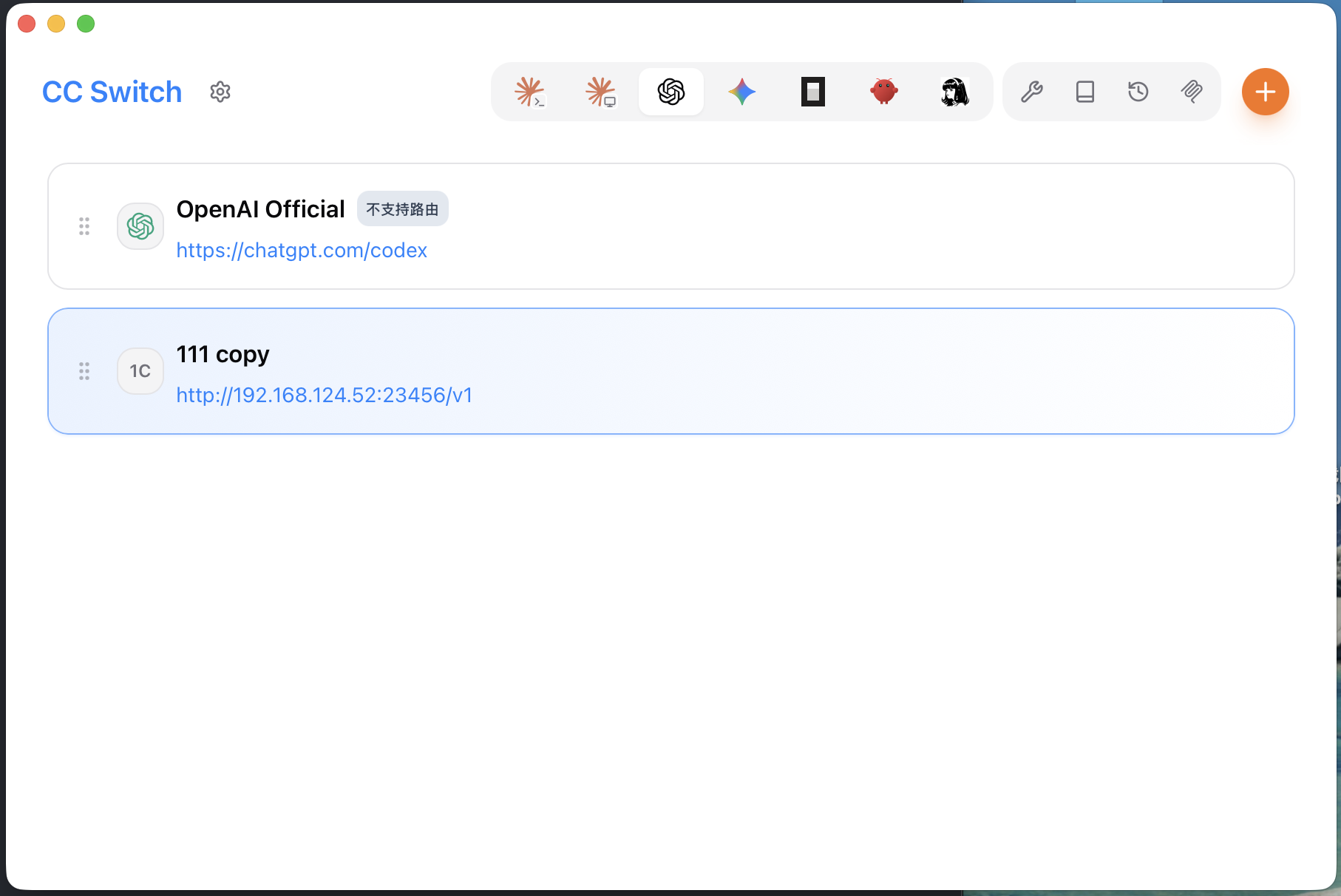
Step 2: Add a new provider and choose “Custom Configuration”
Click the orange + button in the top right to open the Add New Provider dialog → keep the top tab on Codex Provider → in the Preset Providers panel pick Custom Configuration (the first blue tile in the top-left corner).
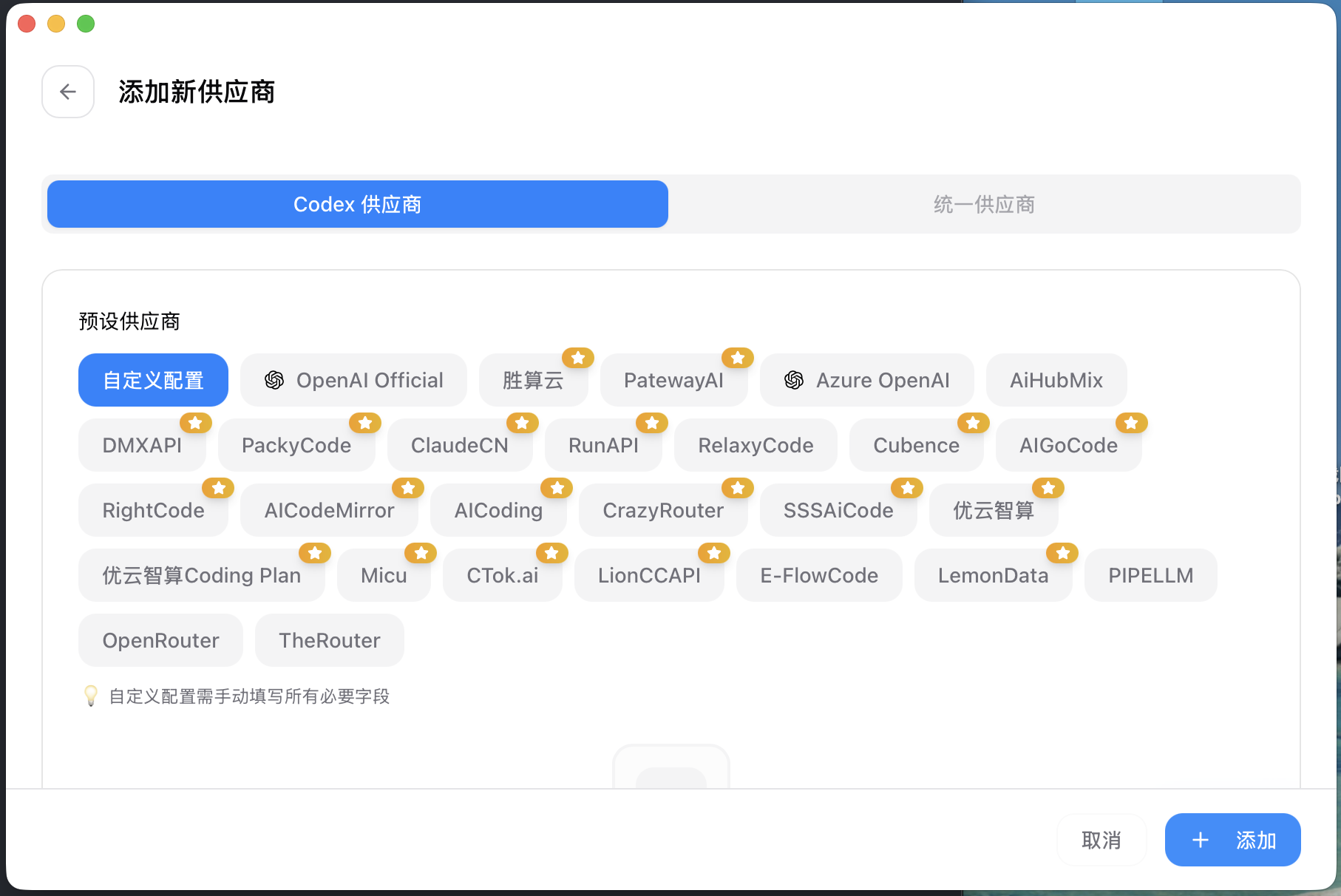
Step 3: Fill in the cc-router endpoint
Fill the form according to the table below:
| Field | Value |
|---|---|
| Provider name | cc-router (free-form — only used to identify the entry in cc-switch) |
| API Key | The token shown on cc-router’s Settings page (same one Claude Desktop uses) |
| API endpoint | See Two URL formats below |
| Model name | gpt-5.5 / gpt-5.4 / gpt-5.4-mini (see the mapping table below) |
Two URL formats
Important: the Step 3 screenshot shows
http://192.168.124.52:23456/v1, but that is the author’s LAN IP — do not copy it verbatim. Pick one of the two scenarios below:
- Local use (recommended): cc-switch / Codex and cc-router run on the same machine — just use the loopback address, it’s the most reliable:
http://127.0.0.1:23456/v1 - LAN sharing: cc-switch / Codex and cc-router run on different machines — use the LAN IP of the machine where cc-router runs:
For examplehttp://<LAN IP of the cc-router host>:23456/v1http://192.168.1.50:23456/v1orhttp://10.0.0.42:23456/v1. Substitute your own IP.
The port defaults to 23456 and auto-increments if it’s taken — always go by the Actual: value next to the port field on cc-router’s Settings page. The URL must end with /v1 (cc-switch concatenates /responses as a relative path; without the /v1 prefix cc-router returns 404).
No HTTPS / certificate needed: cc-switch points Codex at cc-router’s OpenAI Responses endpoint (
/v1/responses) over plain HTTP on23456. Unlike the Claude Desktop gateway, which mandates HTTPS, the entire CA-export-and-trust dance can be skipped here.
Choosing the model name
cc-router maps OpenAI-style model IDs onto its three virtual slots. Pick whichever fits the workload:
| What you fill into cc-switch | cc-router virtual slot | Good for |
|---|---|---|
gpt-5.5 | model-opus | Planning, long-context reasoning |
gpt-5.4 | model-sonnet | Day-to-day coding |
gpt-5.4-mini | model-haiku | Tool calls, lightweight tasks |
The screenshot uses
gpt-5.5. If you haven’t bound a real model to the opus slot yet, fillgpt-5.4instead. Full mapping rules: see GET /v1/models.
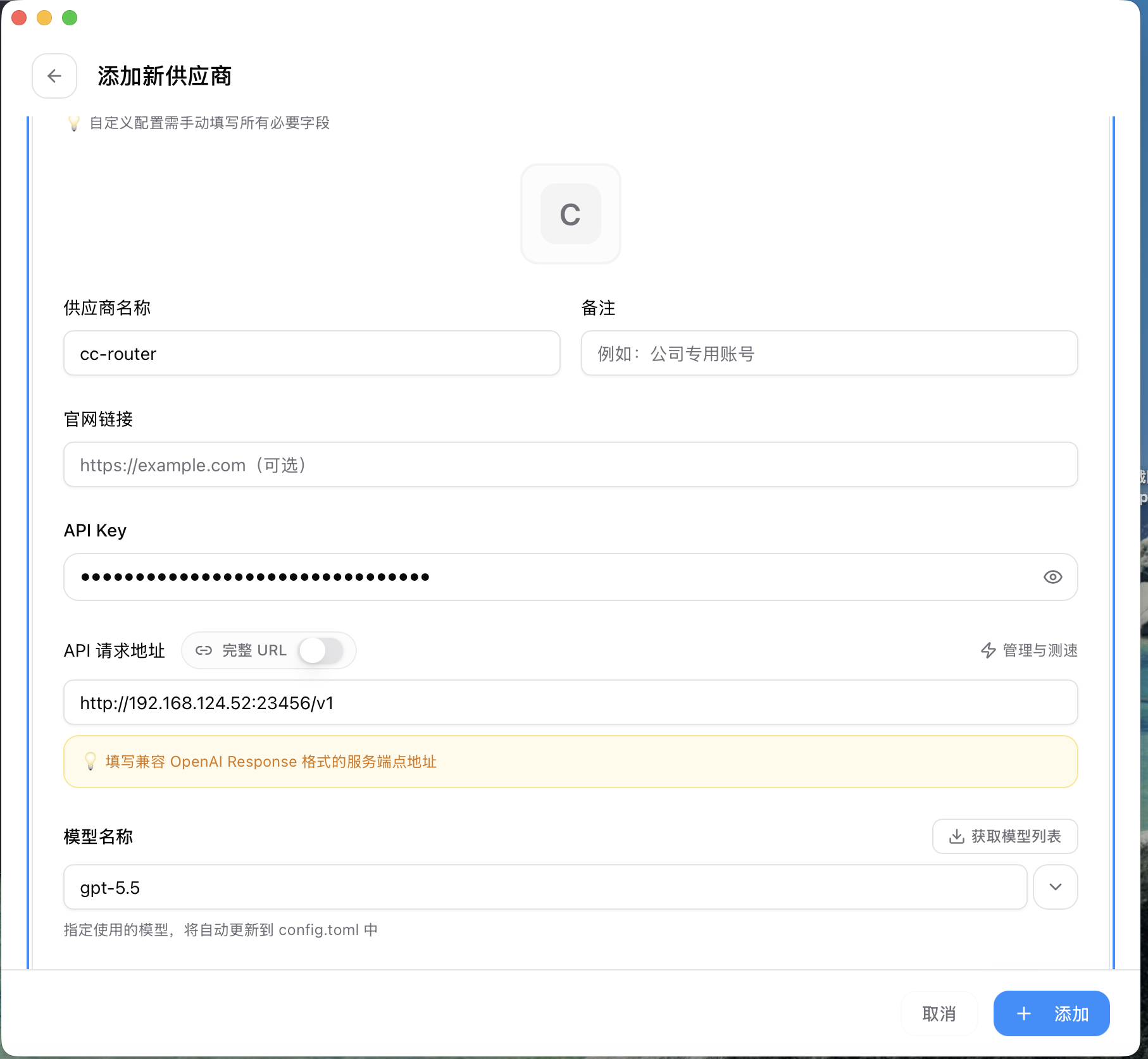
Click + Add in the bottom right to save. cc-switch automatically writes the active provider into ~/.codex/config.toml and ~/.codex/auth.json — no manual file edits needed.
Step 4: Verify with Codex CLI
Open a terminal in any directory and start Codex CLI. Confirm the model: line at the top shows the model name you filled in (e.g. gpt-5.5 high), then ask anything and check that the response comes back normally.
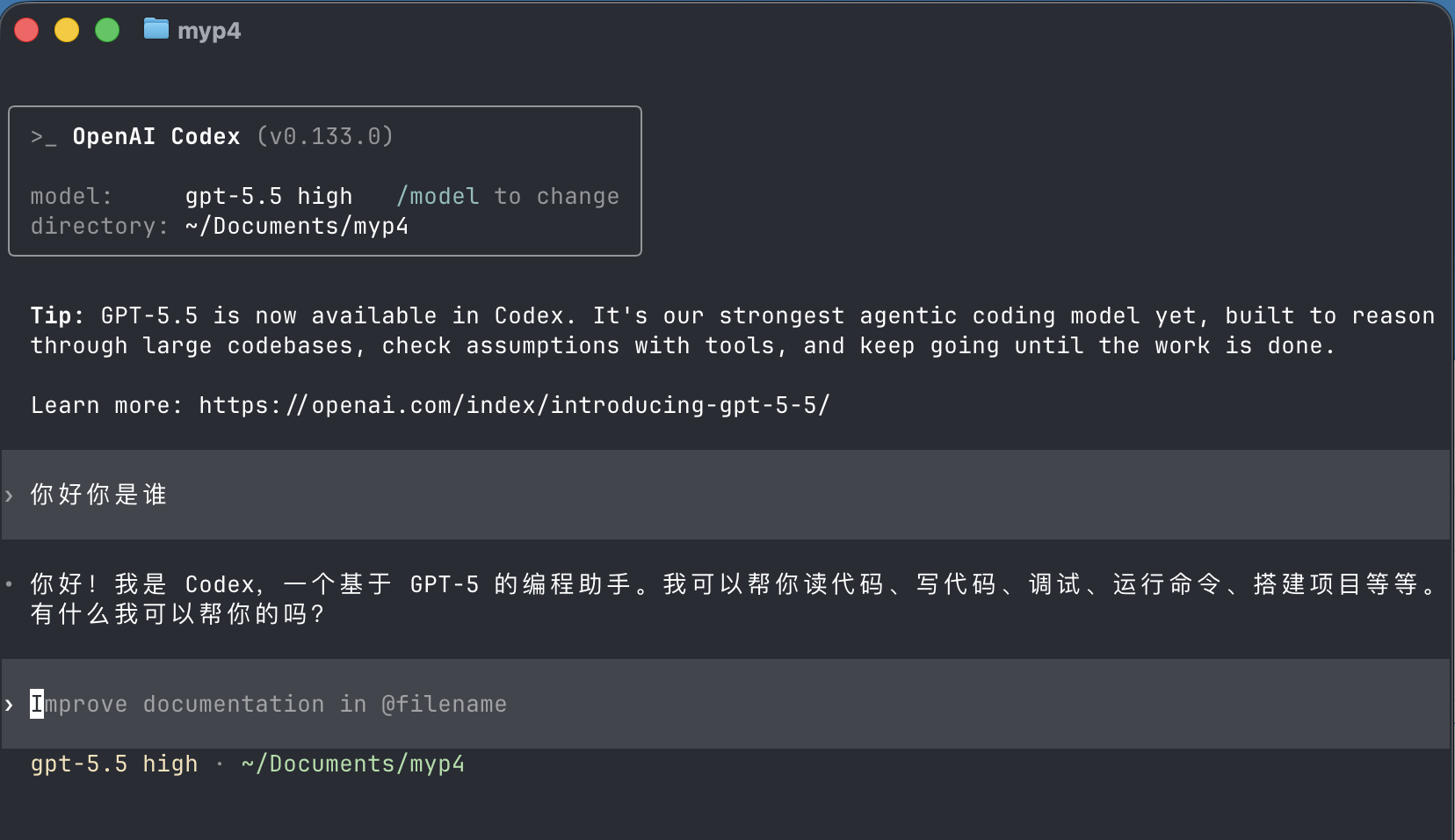
Step 5: Verify with Codex Desktop
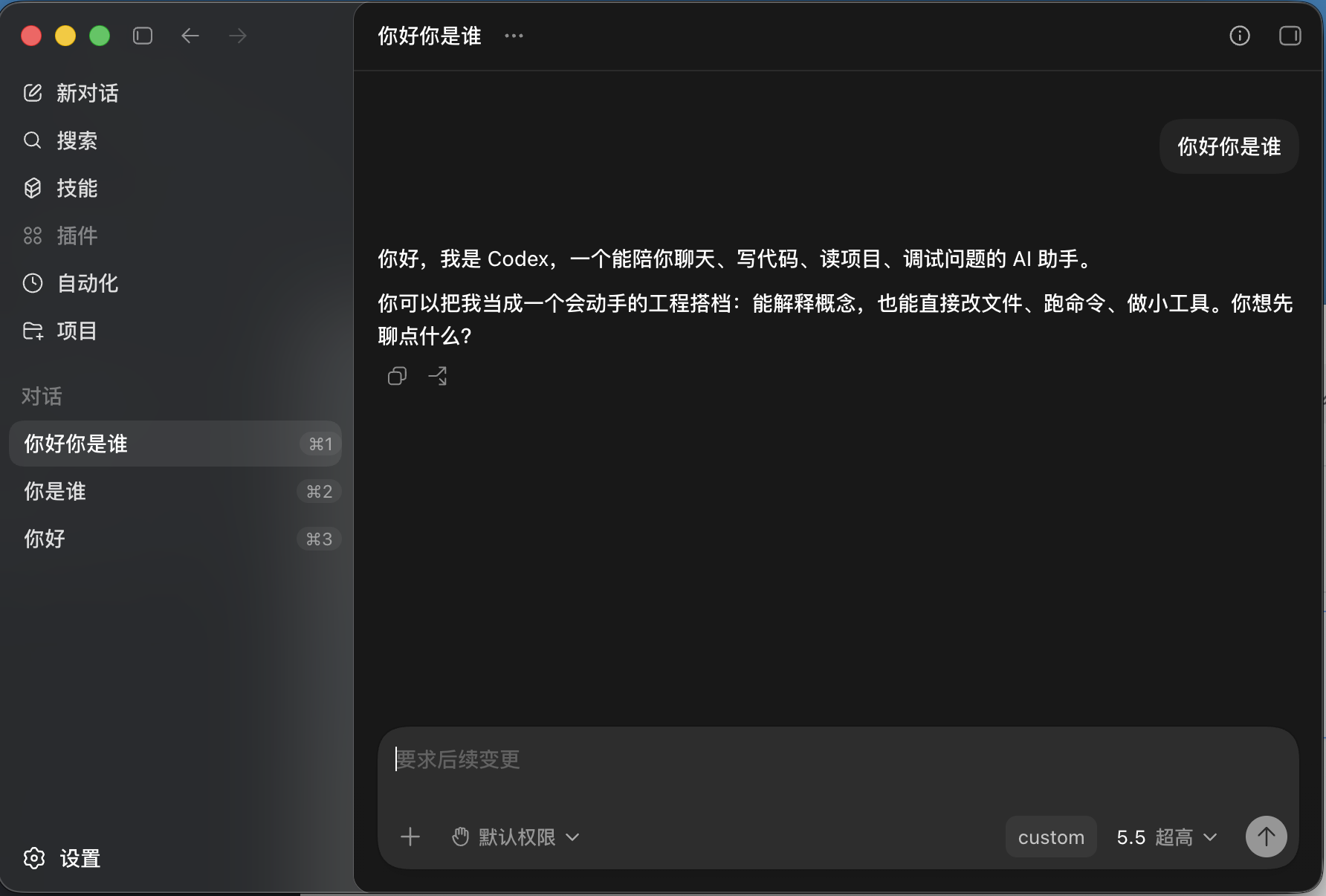
Open Codex Desktop. If you were already logged in to your OpenAI Official account, restart Codex Desktop once after cc-switch changes the provider to pick up the new config. In the model picker at the bottom right of the chat window, select the model name you filled in and start a conversation.
The small
customlabel in the bottom right of the model picker confirms Codex Desktop has recognized the custom provider — requests will go through cc-router.
Step 6: Verify in cc-router’s request log
Back in cc-router’s main UI, switch to Request logs in the left sidebar. Your test requests should appear there: the Client column shows Codex CLI or Codex Desktop, the Virtual model column shows the corresponding slot (e.g. model-opus), and the Real model column shows the upstream the request was finally routed to (e.g. mimo-v2.5, gpt-5.5-xhigh).
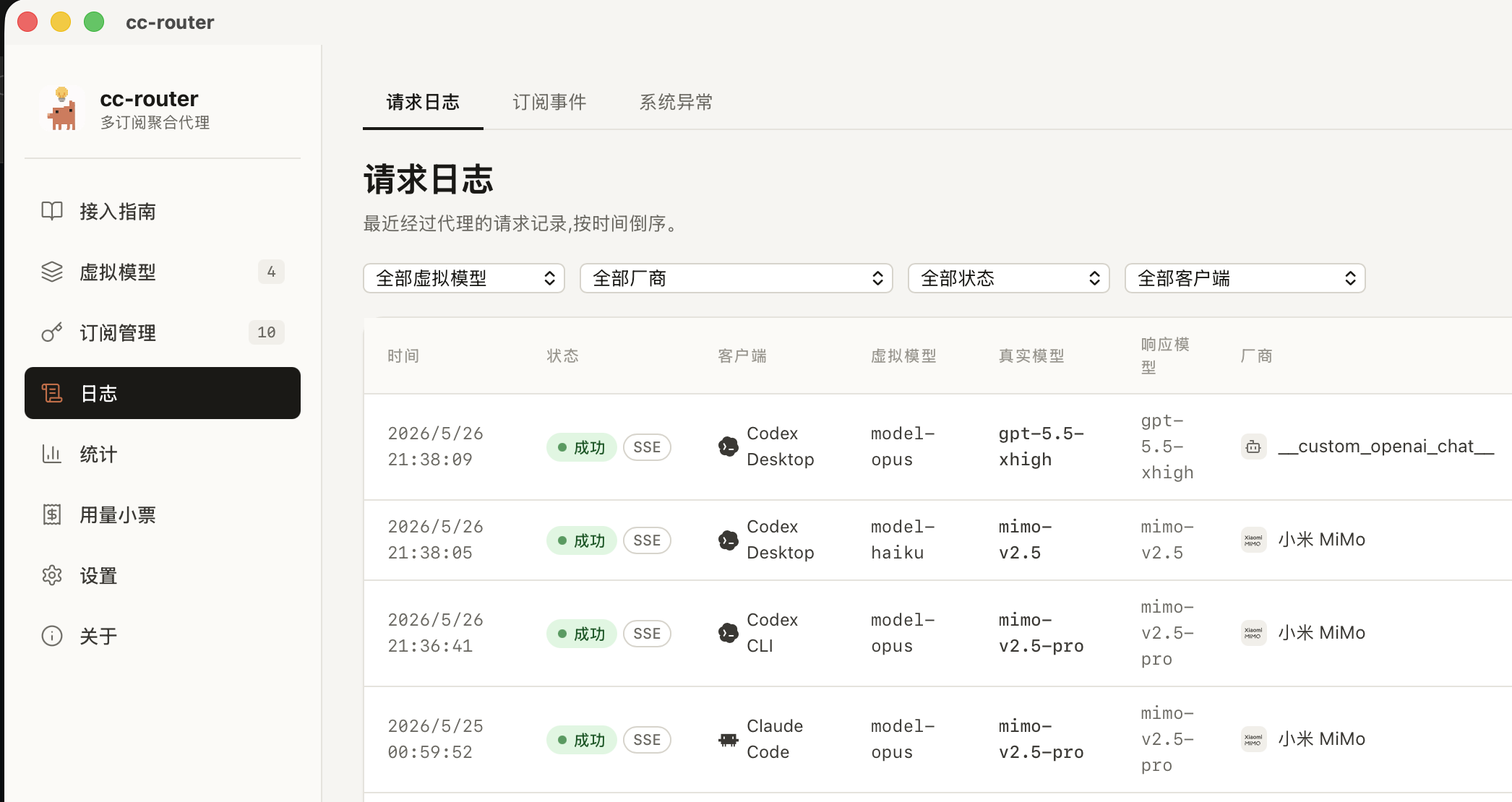
That’s it — the integration is wired up end-to-end.
Troubleshooting
connection refused/ECONNREFUSED— cc-router isn’t running, the port differs from what you wrote, or a firewall is in the way. First check the Actual: value next to the port field on cc-router’s Settings page; then re-verify the port in cc-switch. For LAN setups, also confirm the firewall on the host machine allows that port.404 Not Found— the API endpoint is missing the/v1suffix. cc-switch concatenates/responsesas a relative path; without/v1cc-router can’t find the handler. Use thehttp://127.0.0.1:23456/v1form.401 Unauthorized— cc-router may have rotated its token. Re-copy the API Key from cc-router’s Settings page and paste it back into cc-switch.model_not_found/400 model is required— wrong model name. You must use one of cc-router’s OpenAI aliases (gpt-5.5/gpt-5.4/gpt-5.4-mini). Anthropic short names likemodel-sonnetonly work on/v1/messages, not/v1/responses.- Codex Desktop still uses the old account — after cc-switch swaps the provider, you must restart Codex Desktop; otherwise the stale OpenAI Official credentials remain active.
- Another LAN machine can’t connect — first, on the cc-router host, run
curl http://<LAN IP>:23456/healthand confirm it returnsok(which means cc-router is listening on0.0.0.0, not only127.0.0.1). Thencurlagain from the client machine — if that succeeds, the route is reachable.
Security Notes
- The API Key grants access to every upstream provider you’ve configured. Treat it as a credential, do not leak it, do not commit it to repositories.
- Expose cc-router’s port only on trusted networks. For public exposure, evaluate the risk yourself and front it with a reverse proxy plus an auth layer.
- cc-switch writes the active provider into
~/.codex/config.toml— when backing up the file, remember it also contains the API Key in plain text.