Claude Desktop Integration
This page walks you through wiring cc-router into Claude Desktop so the app can call your aggregated virtual models — model-opus, model-sonnet, model-haiku — over cc-router’s HTTPS gateway.
This page follows macOS as the main path. Windows users, see Using Claude Desktop and Claude Code on Windows.
Prerequisites
- cc-router installed and configured with at least one virtual model bound (see Getting Started)
- Claude Desktop installed
- This guide uses loopback (127.0.0.1) as the primary example. If Claude Desktop and cc-router run on different machines (LAN setup), pay extra attention to the Extra SANs note in Step 2 and the URL template in Step 5.
Step 1: Enable HTTPS in cc-router
Claude Desktop’s third-party inference gateway only accepts HTTPS endpoints, so start by exposing cc-router’s HTTPS listener.
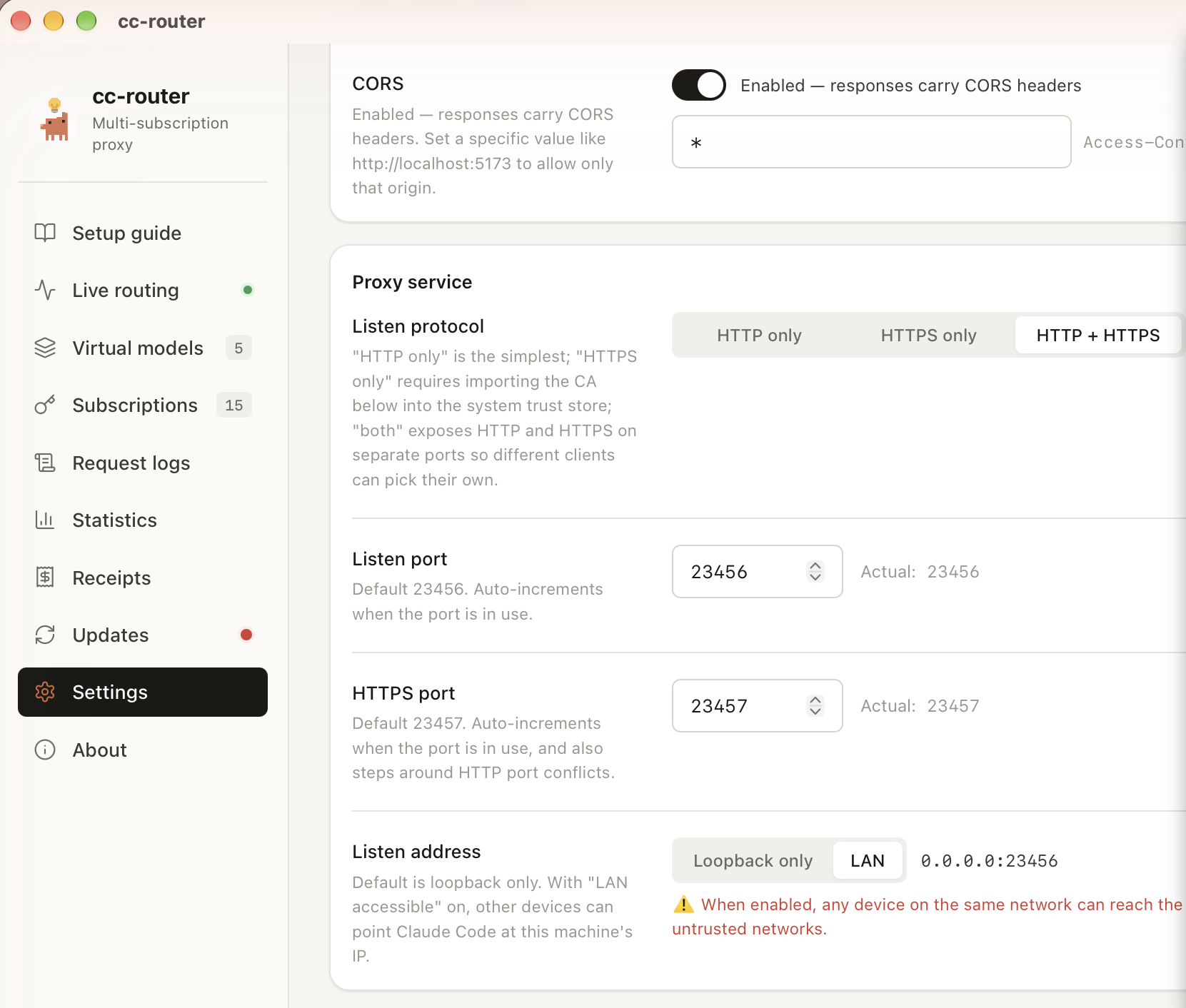
Open cc-router → Settings → Proxy service → set Listen protocol to HTTPS only or HTTP + HTTPS → fully quit and restart the app (required — the protocol switch does not hot-reload).
The HTTPS port defaults to 23457 and auto-increments if it’s taken. Always go by the Actual: value shown next to the port field on the Settings page.
Step 2: Export the CA Certificate
cc-router signs leaf certificates with a locally-generated CA. For Claude Desktop to trust the HTTPS endpoint, install this CA into your OS trust store first.
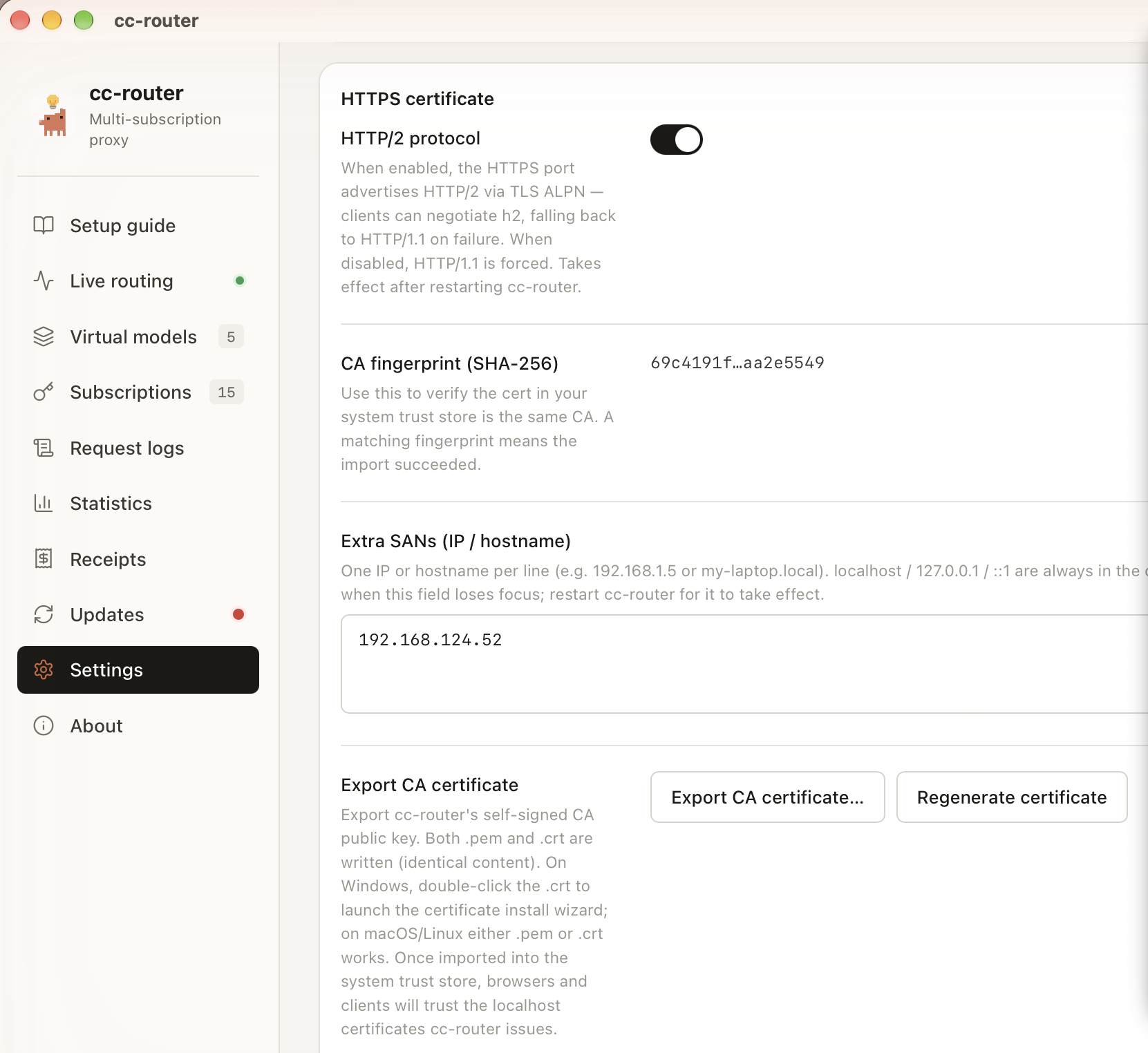
In Settings, scroll to the HTTPS certificate section → click Export CA certificate… → save it as cc-router-ca.pem (you can rename to .crt if preferred).
Verify the fingerprint: note the CA fingerprint (SHA-256) shown above the export button. After importing on the OS side, cross-check the fingerprint to confirm it’s the same CA.
LAN multi-machine access: if Claude Desktop will reach cc-router from a different machine, add the access IP or hostname to the Extra SANs textbox first (one per line). The leaf certificate auto-re-signs on blur — restart the app, then export the CA. The CA itself does not change, so previously distributed CAs stay valid.
Step 3: Trust the CA on Your System
macOS
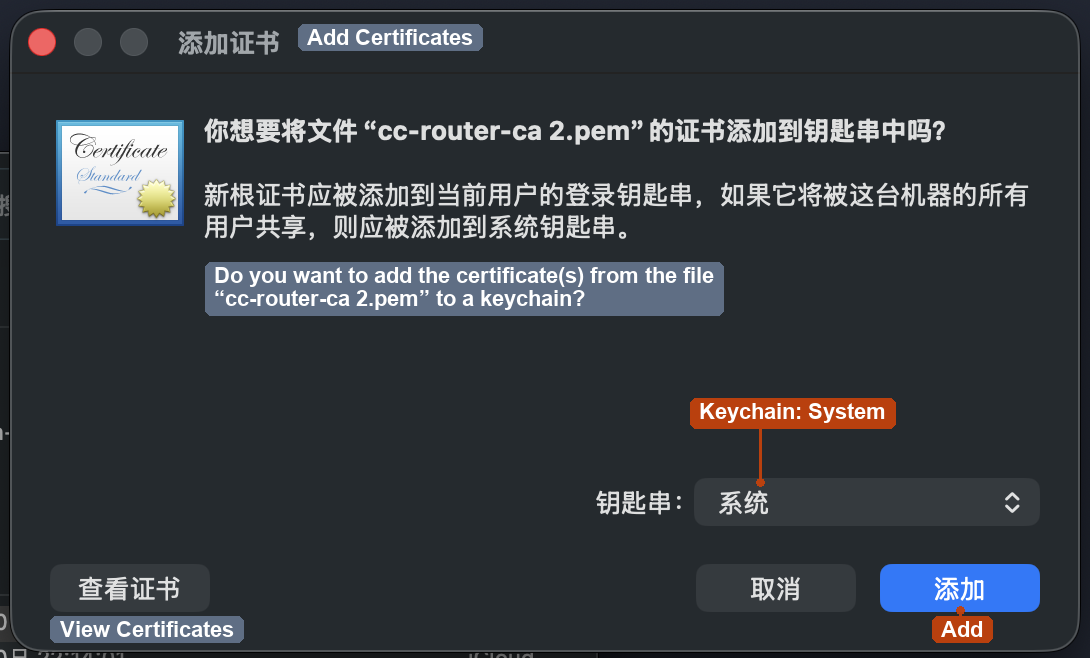
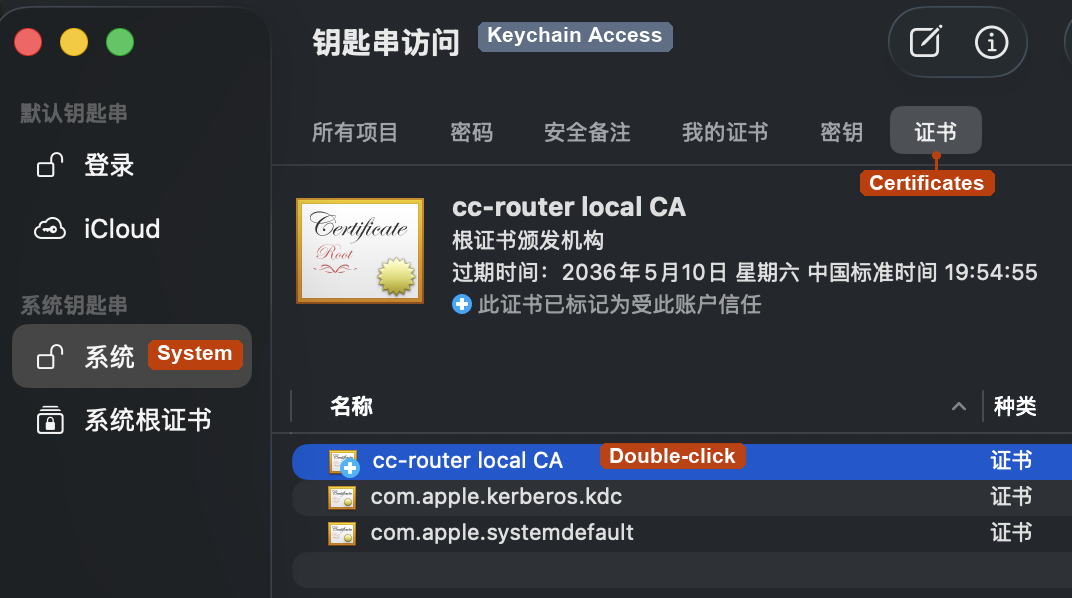
Double-click the .pem file. Keychain Access prompts to add it — choose System as the keychain and click Add.
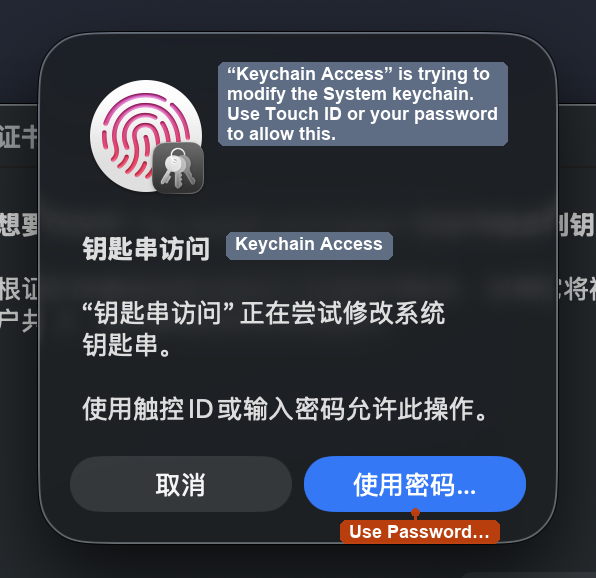
macOS asks for permission to modify the system keychain. Use Touch ID or enter your password.
Back in Keychain Access, find cc-router local CA under System and double-click it.
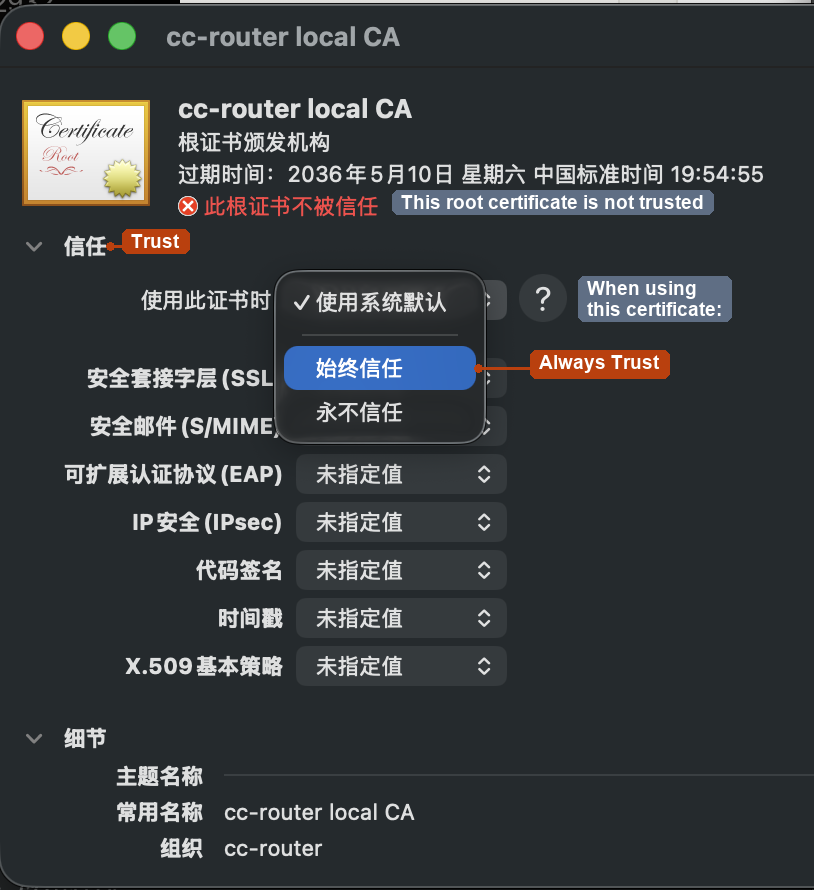
Expand the Trust section, change When using this certificate to Always Trust, then close the window and enter your password again to confirm.
Windows
Double-click the .crt → Install Certificate → choose Local Machine (requires administrator privileges) → Place all certificates in the following store → browse to Trusted Root Certification Authorities → Finish.
For the full walkthrough with screenshots (including where the menus are in Claude Desktop for Windows), see Using Claude Desktop and Claude Code on Windows.
Linux
The file extension must be .crt:
sudo cp cc-router-ca.crt /usr/local/share/ca-certificates/
sudo update-ca-certificates
Firefox and Chromium maintain their own certificate stores — you may need to import the CA into each browser separately.
Step 4: Enable Developer Mode in Claude Desktop
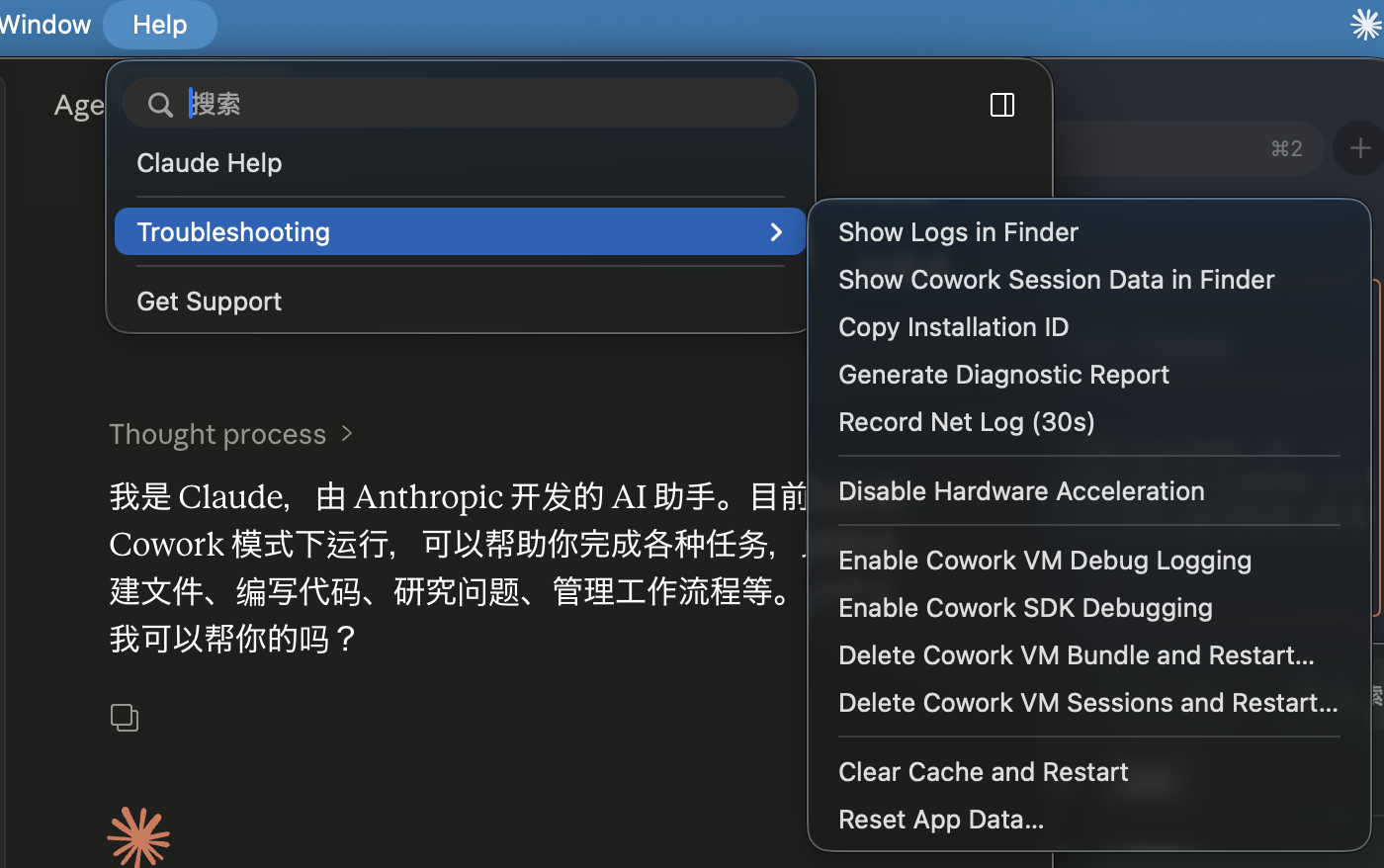
Open Claude Desktop → top-level Help menu → Troubleshooting submenu → enable the developer-mode option (the exact label may vary by Claude Desktop version — use the screenshot below as a positional reference) → restart Claude Desktop when prompted.
After the restart, a Developer menu appears in the menu bar.
Step 5: Configure the Third-Party Inference Gateway
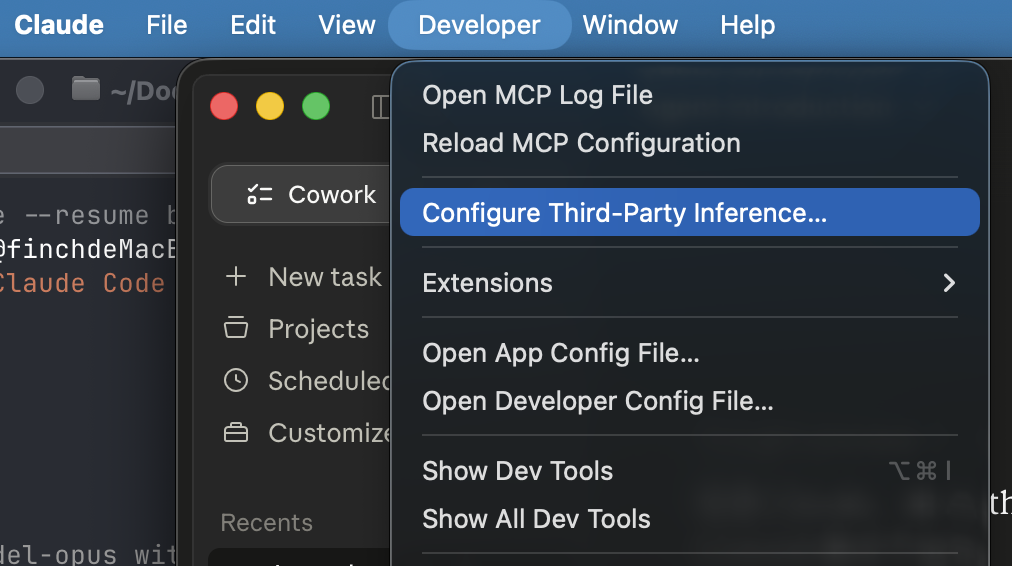
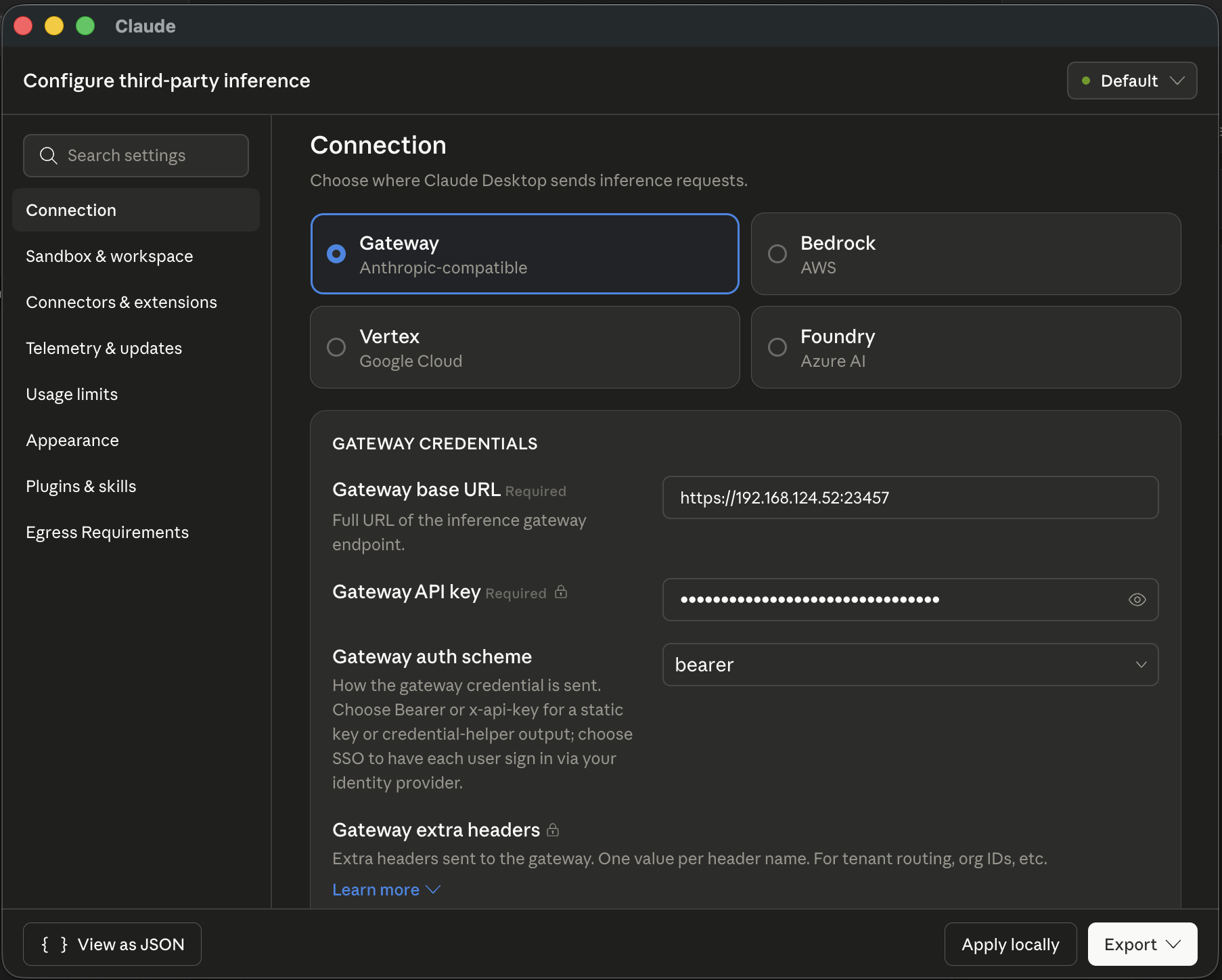
Enabling developer mode usually pops up the Configure Third-Party Inference window automatically. If it doesn’t, open it manually from the top-level Developer menu → Configure Third-Party Inference….
In the Connection tab, select Gateway (Anthropic-compatible) and fill in:
- Gateway base URL
- Template:
https://<cc-router host IP>:<HTTPS port> - Loopback example:
https://127.0.0.1:23457 - LAN example:
https://192.168.x.x:23457(provided that IP was added to Extra SANs in Step 2, the certificate was re-signed, and the remote machine has imported the same CA) - Always match the port to the Actual: value next to the port field in cc-router’s Settings page
- Template:
- Gateway API key: paste the token shown on cc-router’s Settings page
- Gateway auth scheme: select
bearer
Click Apply locally at the bottom right to save.
Step 6: Pick a Model and Verify
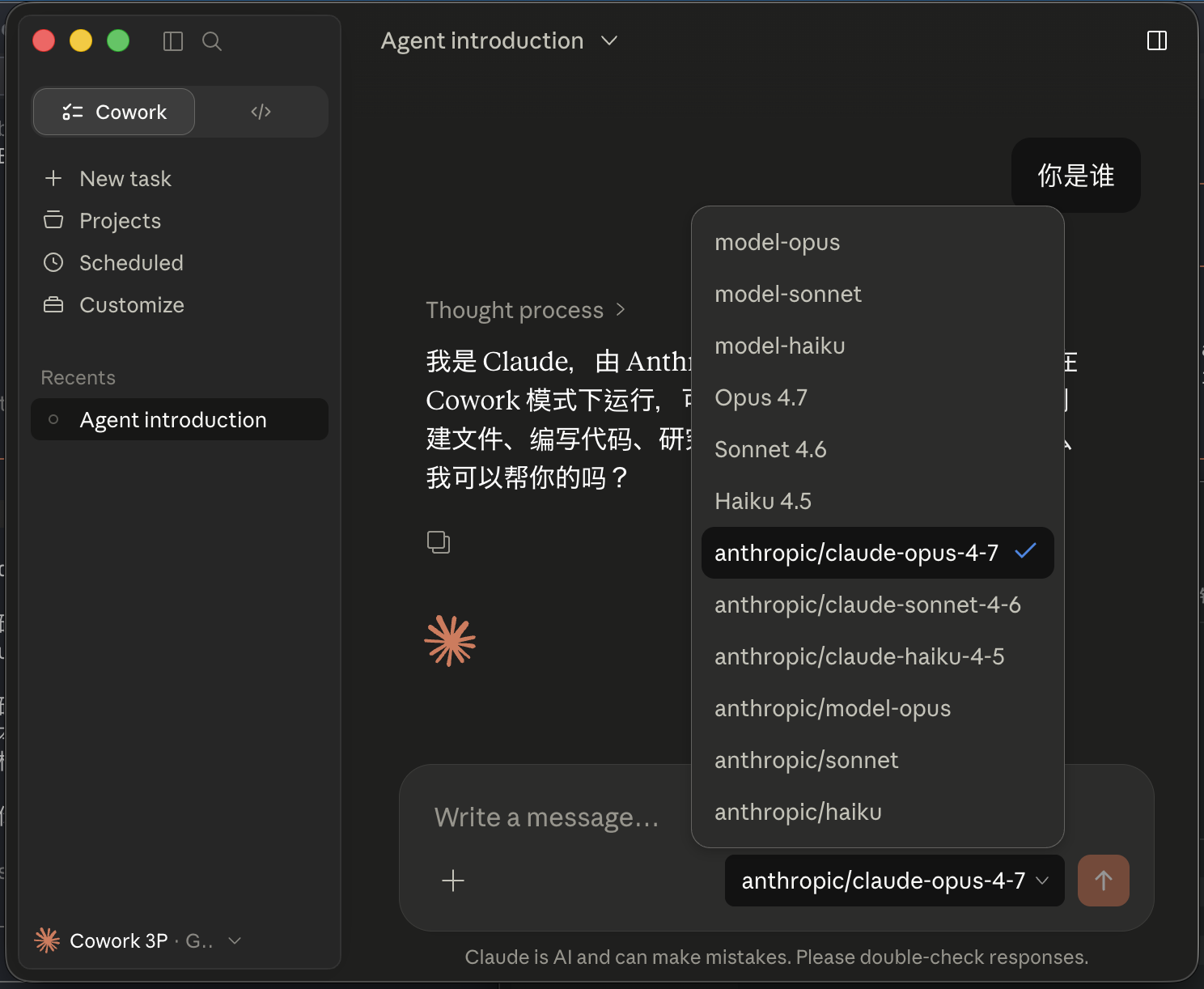
Back on the main Claude Desktop screen, the model picker now lists entries like anthropic/claude-opus-4-7, anthropic/claude-sonnet-4-6, and anthropic/claude-haiku-4-5 — all routed through cc-router to whatever real model you bound. Pick any one and start a conversation.
Open the Request logs page in cc-router’s main UI to watch the routed traffic in real time and confirm which upstream provider each request hit.
Troubleshooting
unable to verify the first certificate/self-signed cert— the CA wasn’t installed or landed in the wrong location. Redo Step 3. On macOS, make sure you added it to the System keychain, not Login.connection refused— cc-router isn’t running, HTTPS isn’t enabled, the port differs from what you wrote, or a firewall is in the way. Cross-check the Actual: port value in cc-router’s Settings page and update the Gateway base URL.Hostname/IP doesn't match certificate— the IP or hostname in your Gateway base URL isn’t in the certificate’s SAN list. Add it to Extra SANs in cc-router, regenerate the certificate (the CA stays the same), and restart the app. Other machines do not need to re-import the CA.401 Unauthorized— cc-router may have rotated its token. Re-copy the Gateway API key from the Settings page.
Security Notes
- The Gateway API key grants access to every upstream provider you’ve configured. Treat it as a credential and do not share it.
- Expose cc-router’s port only on trusted networks. For public exposure, evaluate the risk yourself and front it with a reverse proxy plus an auth layer.